
Configuring a GNS3 Ethernet NIO Cloud
Learn how to configure a GNS3 Ethernet NIO (Network Input/Output) Cloud used in labs found in the Free CCNA Workbook.
Real World Application
In this lab you will learn how to configure a GNS3 Ethernet NIO (Network Input/Output) Cloud used in labs found in the Free CCNA Workbook.
If you are using GNS3 then throughout the Free CCNA Workbook you will be required to connect to the router using your host machine. The workbook was created so GNS3 can be used while running on a Windows XP Professional PC. While running GNS3 on other operating systems such as Windows Vista or Windows 7 is possible but due to the compatibility of GNS3, it is currently recommended that you run GNS3 on a Windows XP machine.
This lab will show you how to configure a Microsoft Loopback interface used for local host IP connectivity to an Ethernet interface of a Cisco device within GNS3. This simulates physical connectivity to the emulated Cisco platform.
You can choose to bind the GNS3 Cloud to your physical adapter rather then the Microsoft Loopback Adapter; when using the physical adapter this gives you the option to connect to the GNS3 Cisco devices from another device within your LAN, however connecting to the GNS3 Cisco device via local host will have a high probability of crashing the Dynamips Engine.
Please note that you may have compatibility issues with Windows 7 and Windows Vista 64bit loopback interfaces, a 32bit operating system is recommended.
Lab Prerequisites
- Load the Free CCNA Workbook GNS3 topology and establish a console session to SW1
Lab Objectives
- Install a MS Loopback interface on Windows XP
- Configure an IP address on the newly created MS Loopback adapter.
- Create a Cloud interface in GNS3 and bind it to the newly created MS Loopback Adapter.
- Verify your connectivity by assigning an IP address to SW1 in the same subnet that you assigned to the MS Loopback adapter. For lab demonstration purposes, Free CCNA Workbook devices will use 192.168.255.1-8/24 and the host machine is 192.168.255.10/24
Lab Instruction
Step 1. – Navigate to the Control Panel by clicking Start > Control Panel or by loading My Computer and clicking Control Panel down the left side bar within “Other Places”
Once in control panel double click the “Add Hardware” icon and the Add Hardware Wizard will pop up as shown below;

After clicking next the Wizard will automatically search for new hardware; this may take a few minutes;

Once the Wizard has finished searching for new hardware and none is found you will be asked rather or not the new hardware is already connected, bullet the Yes, I have connected the hardware and click next

Slide the scroll bar on the right side of the list down to the bottom and highlight Add new hardware device as shown below and click next;
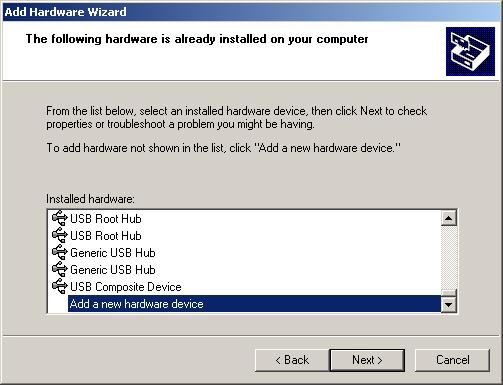
You will now be prompted rather or not you want the Add New Hardware wizard to automatically search for the new hardware. Click the bottom bullet that says Install the hardware that I manually select from a list (Advanced) as shown below and click next;
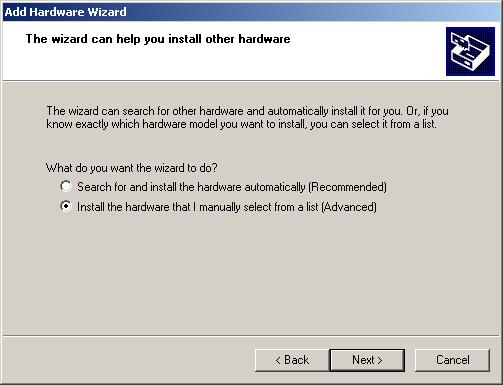
You’re now given a list of different types of hardware you can choose to install. Scroll down the list and select Network Adapters as shown below and click next;

The next window will display a Manufacture list on the left hand side and devices available to install by that manufacture on the right. Some computers may have multiple manufacture options to choose from, if so then select the Microsoft manufacture in the list on the left hand side then select the Microsoft Loopback Adapter in the list on the right hand side as shown below and click next;

You are now shown the hardware device you are attempting to install prior to installing it as shown below, just click next and Windows will install the device. A window with a progress bar may pop up showing the progress of the device driver installation;

Once the Microsoft Loopback Adapter is installed click finish as shown below and restart your computer;

Step 2. – Configure an IP address on the newly created MS Loopback adapter.
The Microsoft Loopback Adapter will appear as a physical NIC when you load Network Connections found in Control Panel. You can configure an IP address on this MS Loopback Adapter just as you would a physical NIC. Use an IP address range that does not conflict with any networks that you’re connected to. A Great example would be 192.168.255.10/24
Step 3. – Create a Cloud interface in GNS3 and bind it to the newly created MS Loopback Adapter.
Load up the Free CCNA Workbook GNS3 topology and in the Node Type list on the left side of the GNS3 window you will see a node called Cloud. Left click that node and hold down the mouse button and drag that node onto the topology pane as shown below;
Note: Click on the images to open in a browser window in high resolution.

Once the Cloud is in the topology pane, double click the cloud and you will see the Cloud tree and the list of Clouds available for configuration. Click Cloud 1 named CL1 as shown below;
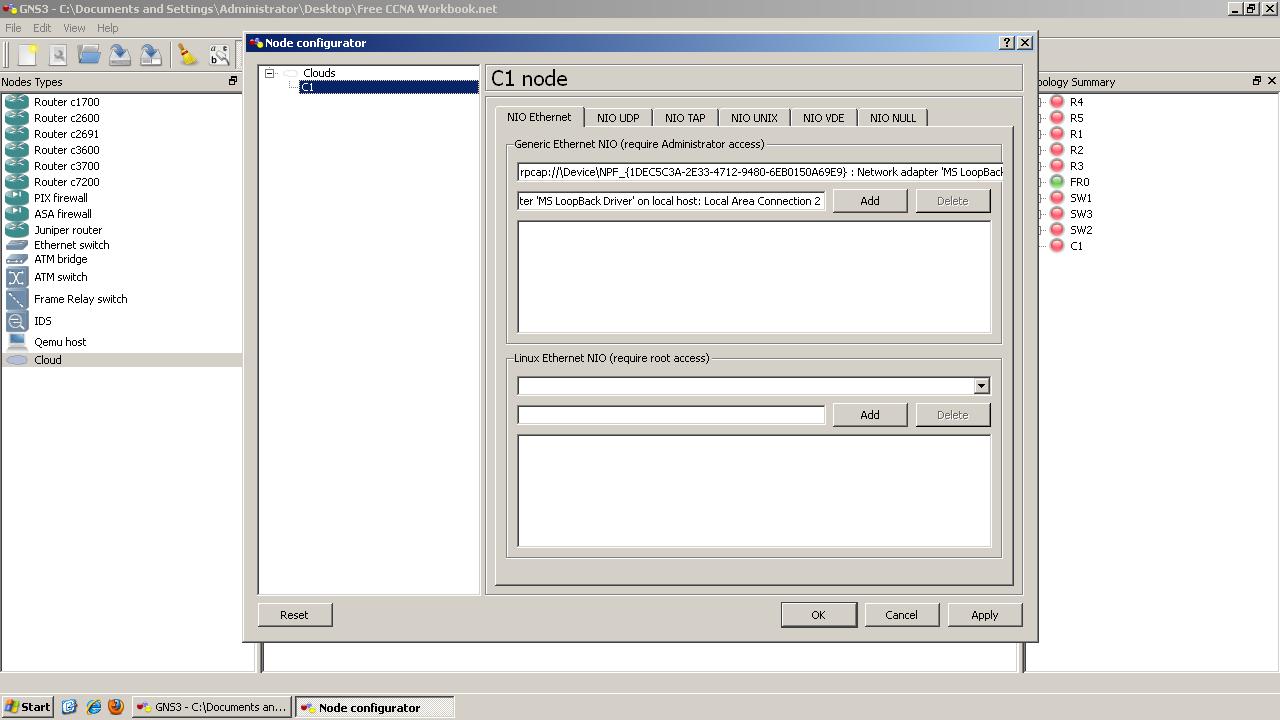
Once in the Cloud configuration you will notice 2 text boxes under Generic Ethernet NIO (require Administrator access). If you have multiple network adapters you will see them all listed when clicking on the first textbox. Find the Adapter that has the name Network Adapter: ‘MS LoopBack’ and add that adapter by clicking the ADD. Once completely you will see the Ethernet uid in the large textbox as shown below;

After Binding the MS Loopback network adapter to Cloud 1 (CL1) its time to logically connect Cloud 1 to SW1 in the Free CCNA Workbook GNS3 topology. This is done by clicking on the RJ-45 Ethernet plug as shown in the picture below and selecting FastEthernet;
When logically connecting devices in GNS3, you can only connect the medium that the interfaces on the virtual devices are rated at. e.g; you cannot connect GigaEthernet to a FastEthernet interface on SW1.
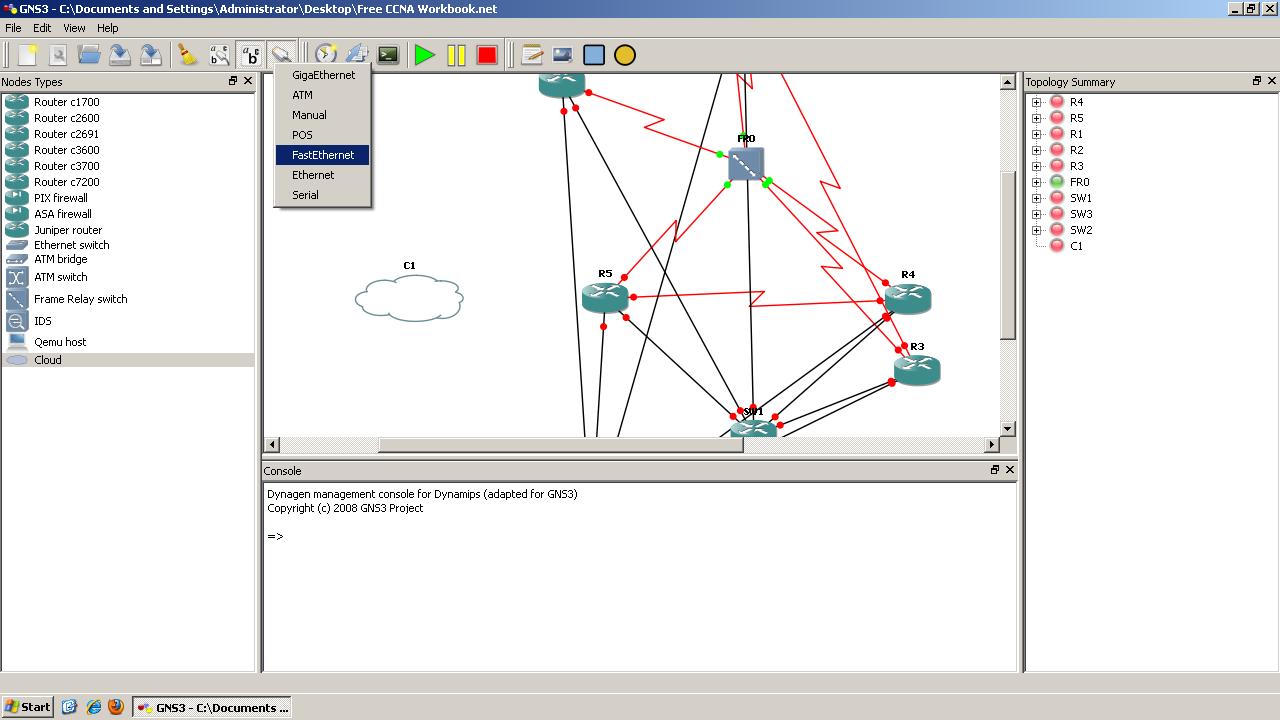
After selecting the FastEthernet medium from the “Add a Link” button shown in the previous picture click on the cloud as shown below and you will be given the NIO UID that is associated with that cloud, highlight and click the NIO UID;

Now drag the link sourced from Cloud 1 (CL1) over to SW1 in the topology and click SW1. This will automatically terminate the link to the FastEthernet1/0 interface as its the only available interface to terminate the link to.
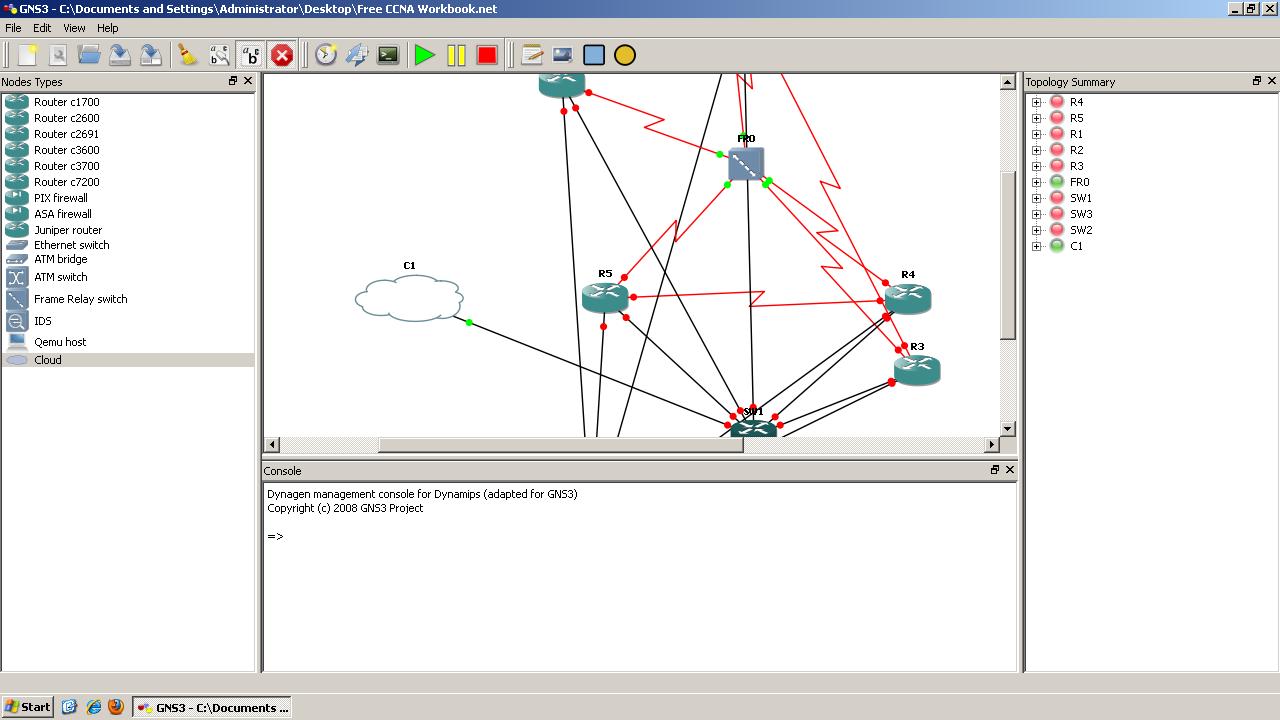
Step 4. – Verify your connectivity by assigning an IP address to SW1 in the same subnet that you assigned to the MS Loopback adapter. For lab demonstration purposes, Free CCNA Workbook devices will use 192.168.255.1-8/24 and the host machine is 192.168.255.10/24.
Now its time to test connectivity so assign an IP address to SW1’s FastEthernet1/0 interface and ping the local host from SW1’s command line as shown below;
Router con0 is now available


Press RETURN to get started!


Router>enable
Router#configure terminal
Enter configuration commands, one per line.  End with CNTL/Z.
Router(config)#hostname SW1
SW1(config)#interface FastEthernet 1/0
SW1(config-if)#ip add 192.168.255.1 255.255.255.0
SW1(config-if)#no shut
SW1(config-if)#end
SW1#ping 192.168.255.10

Type escape sequence to abort.
Sending 5, 100-byte ICMP Echos to 192.168.255.10, timeout is 2 seconds:
..!!!
Success rate is 60 percent (3/5)
SW1#ping 192.168.255.10

Type escape sequence to abort.
Sending 5, 100-byte ICMP Echos to 192.168.255.10, timeout is 2 seconds:
!!!!!
Success rate is 100 percent (5/5), round-trip min/avg/max = 4/5/8 ms
SW1#
