Logging to a Syslog Server
Logging information is crucial to understanding hiccups in your network infrastructure. Commonly this is done by SYSLog. This lab will discuss and demonstrate the configuration and verification of SYSLog.
Real World Application
In production networks routers moan and groan every minute theoretically speaking. Interfaces going up and down, ACL hit counts incrementing, configuration changes and etc… From an administrative standpoint one needs to track all the messages that the devices generate, these are known as system log messages. Of course one would never log each device to its self as this would be an administrative disaster to have to pull logs from every single device in the network. Most companies that have a full time engineer would no doubtingly place a SYSLog server in the network to collect all the messages generated by Cisco devices.
After all why check tens, hundreds if not thousands of devices for local log messages when you can check a single server for log messages of every device in the network?
Lab Prerequisites
- If you are using GNS3 than load the Free CCNA Workbook GNS3 topology than start devices; R1.
- Establish a console session with devices R1 than configure the devices respected hostname(s).
- If you’re using GNS3 you’ll need to delete the link connecting to R1’s FastEthernet0/0 and configure a Cloud interface linking to R1’s FastEthernet0/0 interface. For reference of this configuration refer to Lab 1-8 – Configuring a GNS3 Ethernet NIO Cloud Configuring a GNS3 Ethernet NIO Cloud
- For testing purposes, download Solarwinds Kiwi SYSLog Server which can be found HERE
Lab Objectives
- Configure R1 to enable logging towards the host IP address assigned to your Cloud 1 Adapter.
- Configure the logging option to log level 7 (Debugging) messages and lower.
- Generate some SYSLog messages by debugging IP Packet and ping the Cloud’s interface IP.
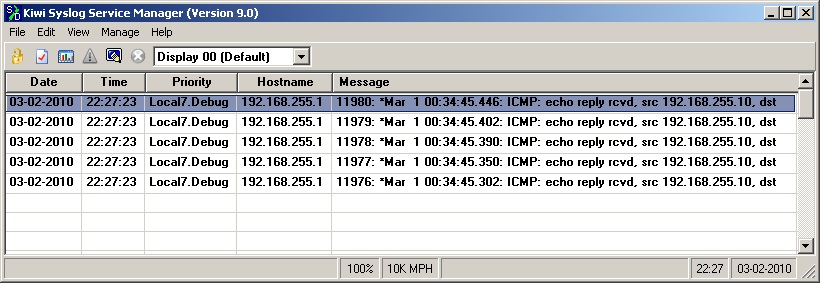
- Verify the SYSLog messages are correctly sent to the Kiwi SYSLog Server.
Lab Instruction
Step 1. – Configure R1 to enable logging towards the host IP address assigned to your Cloud 1 Adapter. To complete this objective you will use the logging host x.x.x.x command whereas x.x.x.x is the IP address of the SYSLog Server as shown below;
R1 con0 is now available


Press RETURN to get started.


R1>enable
R1#configure terminal
Enter configuration commands, one per line.  End with CNTL/Z.
R1(config)#logging host 192.168.2.3
Step 2. – Configure the logging option to log level 7 (Debugging) messages and lower. To complete this task you will use the logging trap command followed by the level highest level you wish to log (1-7)
R1(config)#logging trap 7
R1(config)#end
R1#
%SYS-6-LOGGINGHOST_STARTSTOP: Logging to host 192.168.2.3 port 514 started
 - CLI initiated
R1#
Step 3. – Generate some manual SYSLog messages by debugging IP Packet and ping the Cloud’s interface IP.
R1#debug ip icmp
ICMP packet debugging is on
R1#ping 192.168.255.10

Type escape sequence to abort.
Sending 5, 100-byte ICMP Echos to 192.168.255.10, timeout is 2 seconds:
!!!!!
Success rate is 100 percent (5/5), round-trip min/avg/max = 4/24/100 ms
R1#
ICMP: echo reply rcvd, src 192.168.255.10, dst 192.168.255.1
ICMP: echo reply rcvd, src 192.168.255.10, dst 192.168.255.1
ICMP: echo reply rcvd, src 192.168.255.10, dst 192.168.255.1
ICMP: echo reply rcvd, src 192.168.255.10, dst 192.168.255.1
ICMP: echo reply rcvd, src 192.168.255.10, dst 192.168.255.1
R1#
Step 4. – Verify the SYSLog messages are correctly sent to the Kiwi SYSLog Server.
A screen shot below that Solarwinds Kiwi is properly receiving the SYSLog messages; Click image to enlarge in new web browser tab.